


For an overview of Cursor, please click here.

Preparation
Sign up for GitHub Copilot’s Free plan in advance.

Install Cursor
Follow the steps below to install Cursor.
Install GitHub Copilot in Cursor
Click on the extension icon and type GitHub in the search window. Select GitHub Copilot and click Install.

In the right area, the “CHAT” and “COPILOT EDITS” tabs will be added. Click the “Sign in for Free” button to sign in.

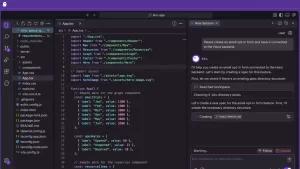
In the bottom right area of the screen, you will see the chat area with Copilot. You can now choose from Claude 3.5 Sonnet, Gemini 2.0 Flash, GPT-4o, GPT 4o, and o3-mini. Choose your preferred LLM.

Install Roo Code (formerly Roo Cline) on Cursor
Next, install Roo Code on Cursor. Click on the extension icon and type “Roo” in the search window. Select Roo Code and click “install”.

Click “^” to pin your Roo Code.

For API Provider, select VS Code LM API. Select Language Model. Choose gpt-4o, o3-mini, claude-3.5-sonnet, etc. at will. Once selected. Click Done.

remarks
Cursor Uninstall Install Instructions (MacOS Example)
Uninstall Cursor on MacOS
brew uninstall --cask --force cursorInstall Cursor on MacOS
brew install --cask --forcecursorAlternatively, download the app from the Cursor homepage and click on the installer.
Cursor
https://www.cursor.com/




Comments