

Item introduction (StartTabs Split)
StartTabs Split is an extension that gives you flexible control over which pages open when you start Google Chrome. It
not only lets you open a specific page, but also splits it into multiple windows and layouts .
You can download it from the Chrome Web Store (StartTabs Split) ↓
Key Features
- Startup tab set management
- Any URL can be registered in order
- Easy addition, deletion and sorting with tabular UI
- Split display into multiple windows
- You can choose to “Open in existing window” or “Open in new window”
- Automate layout by specifying alignment direction (left/right/top/bottom/ratio 1:1, 1:2, 2:1, etc.)
- Pinning support
- Automatically pin and fix frequently used tabs
- Multilingual support (English/Japanese)
- UI switches according to browser language
- English and Japanese available
- Run the test now
- Saved settings can be checked immediately without restarting Chrome
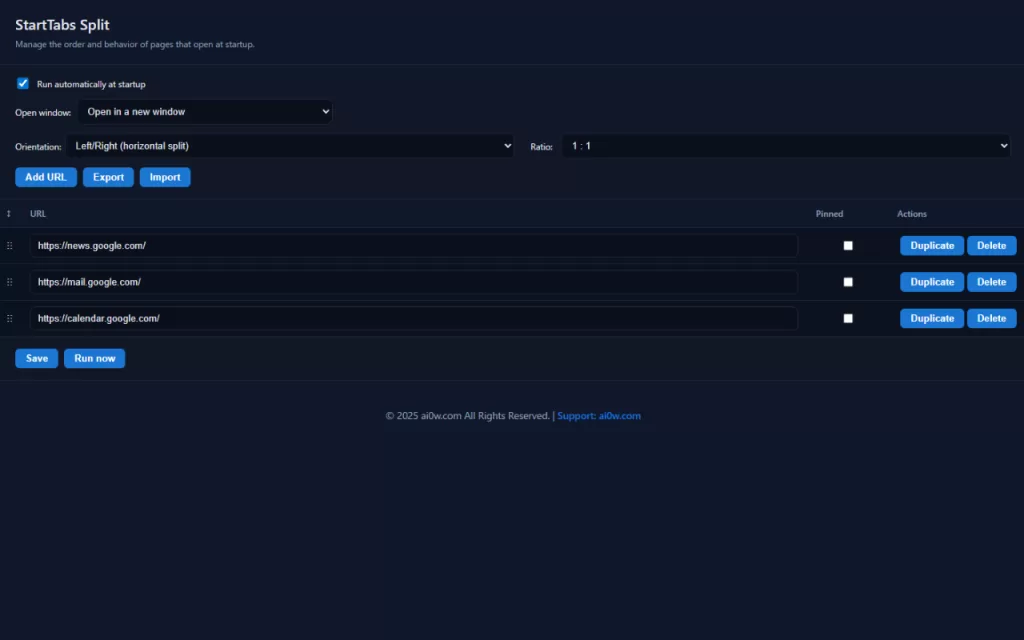
Settings screen
StartTabs Split Manual
1. Introduction
StartTabs Split
is an extension that automatically opens a specified page when you start Google Chrome, and can also display multiple windows and split layouts.
It’s the perfect tool for people who use multiple pages simultaneously on a daily basis.
2. Installation method
- Search for “StartTabs Split” in the Chrome Web Store
- Click the “Add to Chrome” button
- Once the installation is complete, it is convenient to pin it from the extension menu.
3. First-time setup
- When you first start the app, “Google News,” “Gmail,” and “Google Calendar” will be automatically loaded as samples.
- The “First Time Setup” guide will appear at the top of the screen
- Edit the URL and click Save.
- You can immediately check the startup behavior by clicking [Test Run Now].
- The guide will disappear when you press OK
4. How to use the options screen
Click the extension icon → “Options” to enter the settings screen.
(1) Editing the URL list
- Manage in a table format
- Add a new tab with the Add URL button
- Edit the URL input field to register any page
- Checkbox to enable “Pinning”
- Delete with the [×] button
(2) Display window settings
- Open window
- Choose between “Open in existing window” or “Open in new window”
- Alignment direction (for new windows only)
- Select left/right/top/bottom/ratio (1:1, 1:2, 2:3, etc.)
- ratio
- Specify the top/bottom and left/right division ratio
◆ Image of the first time you start Google Chrome: Open all in a new window (left and right , example ratio 1:2)

◆ Image of the first time you start Google Chrome: Open all in a new window (top and bottom , example of 1:1 ratio)

◆ Image of the first time Google Chrome is launched: Open all in a new window (top and bottom , example of 1:1 ratio).
The settings you made in Google Chrome > Settings > On Startup will be reflected.
After that, the URL you set will be opened in addition.

(3) Execution options
- Autorun at startup
- ON by default
- If disabled, nothing will happen at startup and you can only manually run the test now.
- Run the test now
- The settings are reflected immediately and can be checked by opening a new window or tab.
5. Save and Apply
- Click the Save button
chrome.storage.syncto save the settings. - Once saved, it will be automatically reflected the next time you start Chrome.
- The “First Time Setup” guide will end as soon as you save it.
Frequently Asked Questions (FAQ)
Q1. The URL I registered the first time is not displayed.
→ In the latest version, a sample URL is automatically saved when you first install it.
If it is not displayed, please click “Save” once to confirm the settings.
support
- Official site: ai0w.com
- Privacy Policy: Available in the extension under “More Information”
- If you have any problems or requests, please contact us using the inquiry form on the official website.


コメント