

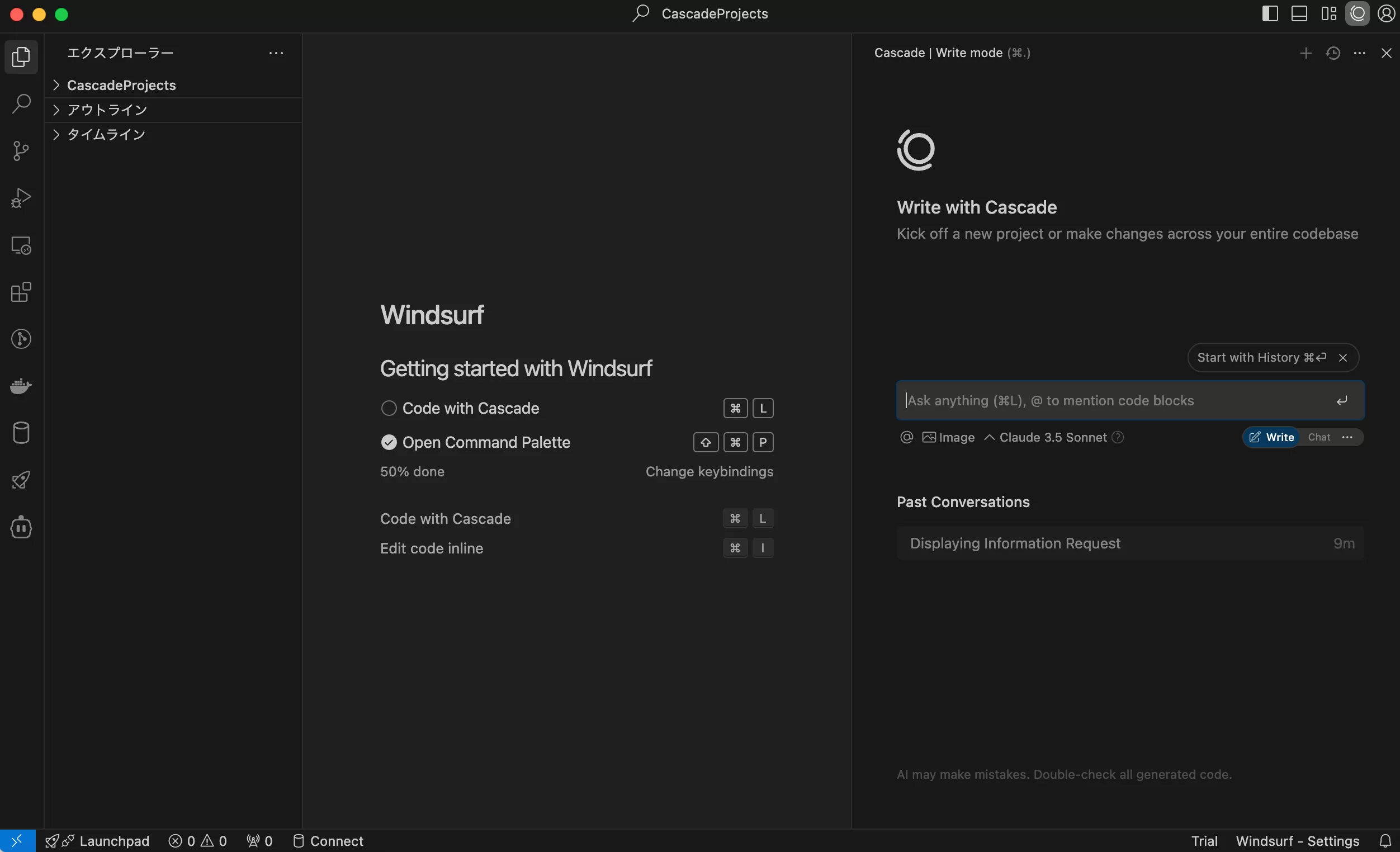
Windsurf is a next-generation AI integrated development environment (IDE) designed to enhance developer productivity. Integrate AI capabilities into your code workflow to support more efficient development.
Key features
Cascade
- AI-powered code assistant
- Generate and execute code in a chat format
- Smarter complementary features
Memories
- Build a deep understanding of your codebase and optimize code completions and suggestions
- Maintain project context for more accurate assistance
Terminal Integration
- Command execution within the IDE
- Automatic execution support with Cascade
SSH Support
- Secure connection to remote servers
Development Container (Beta)
- Dev Containers support to unify your environment
WSL (Beta)
- Integration with Windows Subsystem for Linux (WSL)
- Create a seamless development environment on Windows
Windsurf Pricing
For individuals

For Organizations

- User prompt credits: Consumed when sending messages using the premium model
- Flow action credits: Consumed when calling tools using the premium model
No credit consumption:
All users have unlimited access to Cascade Base, but no user prompt or flow action credits are consumed.
With credit consumption:
If you choose the premium model below, you can use the credits you have.

How to install Windsurf – Mac, Linux, Windows
install
Go to the official Windsurf website and download it from Mac, Linux, or Windows to the environment you want to use.
URL: https://codeium.com/

Specify how you want to set it up.


Select your preferred color.

Sign up or Log in.

The Windsurf app is now launched.

Japanese
Next, we will translate it into Japanese. Search for “Japanese” in Extensions and install the “Japanese Language Pack”.

Windows:Ctrl+Shift+P Mac:⇧ ⌘ P Press “Command Palette” to display the “Command Palette” anddisplay type Configure Display Language to filter and display the command. Enter When you press the key, a list of installed languages will be displayed by locale, so select Japanese.

When the Windsurf restart screen appears, select Restart.


How to use Windsurf
Type in the prompt area on the right to run it.In this case, enter “clock”.

Once you have confirmed that you can create a folder with the mkdir command, click “Accept”.

When asked for permission, confirm the content and “Accept”.
For example, if you are asked for permission to pip install -r requirements.txt, you will “Accept” as well.

For example, if you are asked to allow python3 -m pip install -r requirements.txt, you will do the same “Accept”.

Example) python3 -m venv venv && source venv/bin/activate && python3 -m pip install -r requirements.txt
If you are asked for permission, you will also “Accept”.

To launch the Clock app, click “Accept” in the same way.


References
Windsurf
URL: https://codeium.com/
Windsurf Price
URL: https://codeium.com/pricing
Windsurf Official Documentation
URL: https://docs.codeium.com/windsurf
Windsurf Official Documentation: Cascade
URL: https://docs.codeium.com/windsurf/cascade
Windsurf Official Documentation: Getting Started
URL: https://docs.codeium.com/windsurf/getting-started
Windsurf discord:
URL: https://discord.com/invite/3XFf78nAx5




Comments