


目次
What is Roo Code (formerly Roo Cline)?
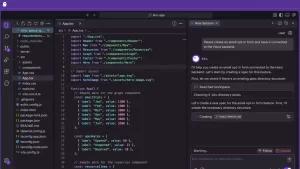
Roo Cline is an AI-powered extension for Visual Studio Code (VSCode) that revolutionizes full-stack application development. This tool provides intelligent assistance within the editor to help developers build applications faster and smarter.
Main features:
- AI-Assisted Development: Equipped with an AI assistant that understands development needs, suggests solutions, and automates repetitive tasks.
- Seamless Integration: Works natively within VSCode, supporting multiple languages, frameworks, and development tools you already use.
- Increased Productivity: Enhance development speed with features like autonomous code generation, intelligent suggestions, and efficient workflows.
- License: Apache-2.0 license
How to use:
- Install the extension: Install Roo Cline from the VSCode Marketplace and activate it within the editor.
- AI Settings: Select your preferred AI model and customize your development environment to suit your needs.
- Start Coding: Begin development with AI assistance, leveraging intelligent suggestions, code completion, and automated tasks.
- Rapid Release: Accelerate your development process with AI-powered features and efficient workflows.
How to use Roo Code (formerly Roo Cline)
Here’s a quick guide on how to use Roo Code. Roo Code is an extension for Visual Studio Code (VSCode) that leverages AI to streamline development tasks.
1. Installation
- Open VSCode:
- Launch Visual Studio Code.
- Search for extensions:
- Click on the “Extensions” icon on the left and search for “Roo Code“.
- Installation:
- Click on the Roo Code displayed in the search results and select “Install”.

2. initial setting
- Sign in:
- Create or log in to your Roo Cline account on the first launch.
- Selecting an AI Model:
- Choose an AI model from the options provided (GPT or other custom models).
- Project Synchronization:
- Connect your local project or GitHub repository to Roo Code.

3. use in development
Code generation
- Input completion:
- As you write code, AI predicts and complements your next steps.
- Template Generation:
- Use commands to generate templates such as database structures and API endpoints.
debug
- Automatic error checking:
- Detect code issues in real-time and suggest fixes.
- Bug Fix Assistant:
- Let the AI suggest fixes for specific bugs.
Documentation
- Comment generation:
- AI automatically generates explanatory comments for functions and classes.
- Code Reference:
- View documentation and references related to code blocks.
automation
- Task Execution:
- Automatically generate and execute terminal commands and test cases.
- Prompt-Based Operations:
- Give instructions to AI in natural language and ask them to generate or modify code.
4. Customization
- Configuration changes:
- You can adjust Roo Code options from VSCode’s Settings menu.
- Team Collaboration:
- Share the same project with multiple users and leverage AI assistance.
5. use case
- API Prototyping:
- Generate API endpoints with minimal input.
- Data Visualization:
- Create graphs and report codes based on datasets.
- Code Review:
- AI-powered code quality checks and suggestions for improvement.
References
GitHub:RooCode
https://github.com/RooVetGit/Roo-Code
VS Code Marketplace: RooCode
https://marketplace.visualstudio.com/items?itemName=RooVeterinaryInc.roo-cline
Reddit Community: RooCode
https://www.reddit.com/r/RooCode/




Comments